Setup
A one-time setup for the whole course.
You will open a blank place, delete the floor, lay down the same Start Platform used across the Roblox course family, find the Studio panels you need, and prove that a server script can print to Output.
The big idea
This course starts from the same world shape as Launch Your Own Obby Game: a Start Platform, ten obstacle stages, checkpoints, a finish pad, and an ExtensionPad.
The difference is what you code into that familiar world. In Tycoon, checkpoints pay coins, a Dropper creates income, a Conveyor moves coins, a Collector pays coins, and upgrade pads spend coins to improve the machine. Those pieces attach to the familiar obby structure instead of becoming a separate system.
Tycoon scripts affect money, upgrades, and purchases, so they belong in ServerScriptService. That folder runs trusted server code. You will meet it during the Studio scavenger hunt today, then use it in every stage.
- Explorer
- the panel listing everything in your game — parts, scripts, services, folders
- Properties
- the panel showing the selected part's size, color, anchored state, attributes, and more
- Script editor
- where you type Lua code; opens when you double-click a Script in Explorer
- Output
- the panel that shows messages from `print()` and red error messages when code breaks
- Workspace
- the folder in Explorer that holds every 3D part the player can see and touch
- ServerScriptService
- a service for trusted server scripts — the right home for coins, machine upgrades, and payout logic
Build it
Step 1 — Open the Baseplate template
Open Roblox Studio and sign in if it asks.
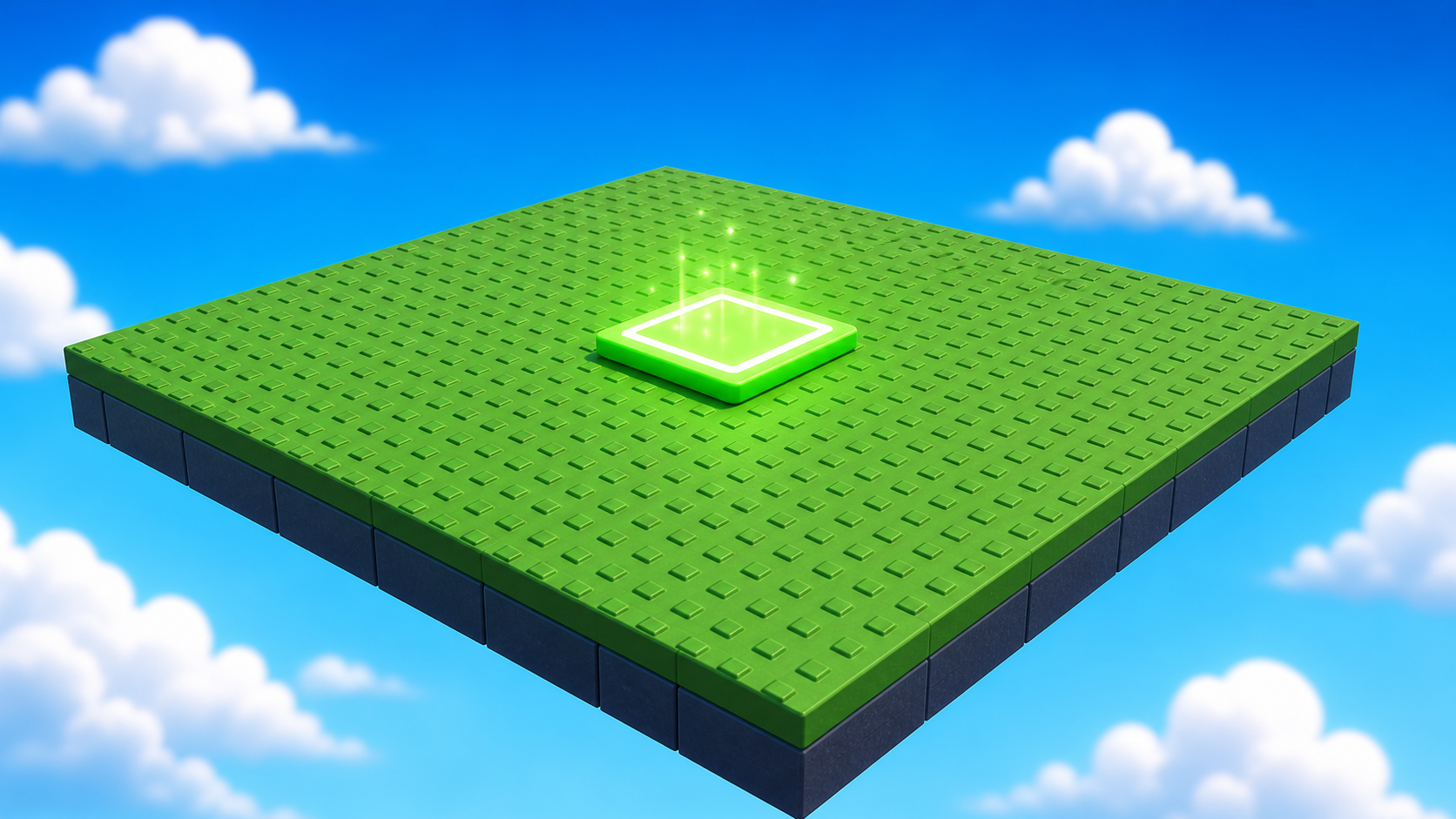
On the New tab, pick Baseplate. It gives you a flat floor, a sky, and one SpawnLocation.
Step 2 — Delete the Baseplate
Your obby will float in the sky. If you leave the green floor, every block you add later will sit on it and falling will not matter.
- In the Explorer panel, expand Workspace.
- Find Baseplate.
- Right-click it -> Delete.
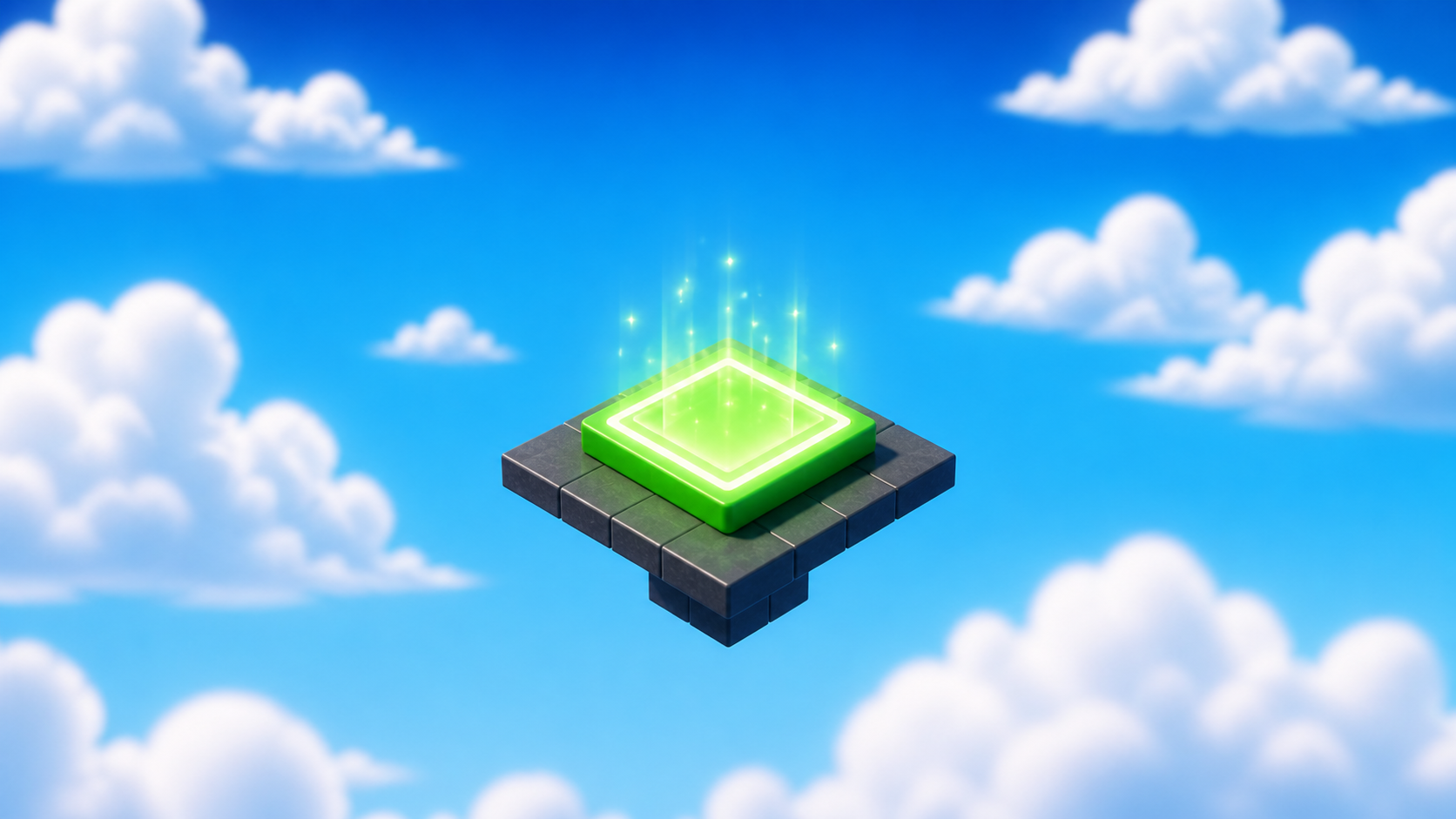
The floor is gone. You should see just the SpawnLocation against the sky.
Step 3 — Build the Start Platform
The SpawnLocation can't float in nothing. Every Roblox course in this series builds the same small Start Platform under it.
For Tycoon, the Start Platform is just the safe beginning. Later stages add the Dropper, Conveyor, Collector, and coin-machine upgrade pads as a small machine layer connected to the obby.
- In Workspace, click + -> Part.
- Open the Properties panel for the new part and set:
- Size ->
[30, 1, 30] - BrickColor -> something calm, like light grey, sand, or white
- Material -> Concrete or Smooth Plastic
- Anchored -> checked
- Size ->
- Rename the part Lobby. That shared part name keeps later course instructions compatible, even though we will talk about it as the Start Platform.
- Drag the SpawnLocation so it sits centered on top of the Start Platform.
Same size, same safe-start role, same Lobby part name in Explorer. Later stages can reference the part reliably while the course stays focused on the obby path and coin machine.
Step 4 — UI Scavenger Hunt
Before we start building the tycoon, find the Studio panels and services you will use every stage.
- The Toolbox — pre-made parts. You will use it lightly; most Tycoon work is built and scripted by hand.
- The Properties panel — where you change Size, Color, Material, Anchored, and Attributes.
- The Explorer panel — the list of everything in your game.
- The Output window — where Roblox prints messages and red errors.
- The big green Play button — to test your game.
- The Workspace folder in Explorer — where your visible parts live.
- The Teams folder in Explorer — used for checkpoints starting in Stage 1.
- The ServerScriptService folder in Explorer — where your tycoon scripts live.
- The Script editor — open one with the round trip below.
Try the server script round trip
You are not writing the tycoon yet. This is just a quick proof that ServerScriptService, the Script editor, and Output are working.
- In Explorer, right-click ServerScriptService -> Insert Object -> Script.
- Rename the script
SetupOutputTest. - Double-click it to open the Script editor.
- Replace the placeholder line with:
print("Tycoon server scripts are working")
Press Play. Look at the Output window. If you cannot see it, open View -> Output.
You should see:
Tycoon server scripts are working
Stop the game, then delete SetupOutputTest. It was only for the setup tour.
Step 5 — Save the project
In Studio's top menu: File -> Save As.
Name your file something like My Tycoon Obby — First Last. You will come back to this same file at the start of every stage.
Understand it
We delete the Baseplate because this is still an obby. Falling should send players back to a checkpoint, not onto a safe floor.
We build the Start Platform because every obby needs one clear, safe beginning. Tycoon adds a coin machine near that beginning, but the course still grows along the same ten-stage obby path.
We tested ServerScriptService because coin values and purchases must be trusted. A client-side script is fine for a button animation. A tycoon economy belongs on the server.
Setup is only for the shared foundation and the first server-script round trip. The coin machine starts in Stage 1 and grows one simple piece at a time.
Test your setup
- Studio is open with a Baseplate project.
- The Baseplate is deleted.
- A Start Platform part named Lobby, size
[30, 1, 30], is anchored in Workspace. - The SpawnLocation sits centered on top of the Start Platform.
- You found Explorer, Properties, Output, Workspace, Teams, and ServerScriptService.
- You typed a one-line Script in ServerScriptService, pressed Play, and saw the message in Output.
- You deleted the setup test script.
- Your file is saved with a name you will recognize tomorrow.
If it breaks
- I can't find ServerScriptService. Open View -> Explorer, then scroll the Explorer tree. ServerScriptService is a built-in service near Workspace, Lighting, and ReplicatedStorage.
- The Output window is missing. Top menu: View -> Output.
- Nothing printed. Confirm the Script is indented under ServerScriptService, not next to it. Press Play again and check that the script is not Disabled in Properties.
- I deleted the SpawnLocation. Press Undo. If Undo does not work, right-click Workspace -> Insert Object -> SpawnLocation, then move it back onto the Start Platform.
- Studio looks different. Roblox updates Studio often. Use the View menu to reopen missing panels before moving on.
Check every laptop for two details: the Start Platform part is named exactly Lobby, and the test script was placed inside ServerScriptService. If either habit is wrong now, the Tycoon stages become harder to debug later.
Do not enable API services during setup. Game-pass and publishing setup belongs later, when campers understand why that switch matters.