Stage 7: The Cookie Counts
Keep your Scratch project tab open all week. Open in a new tab so you don’t leave the course.
a clickable cookie that adds to a score every time you tap it
what a variable is and how to change it
a working clicker with a live score on screen
Show the leap from "play a sound" to "remember a number":
- File → New, name it Cookie Clicker — Coach Demo. Draw or pick a cookie sprite.
- Make a Variable named cookies (Variables palette → Make a Variable). A readout appears on the stage.
- when green flag clicked → set [cookies] to (0).
- when this sprite clicked → change [cookies] by (1).
- Press green flag, click the cookie a bunch. The number climbs. Say: the variable is a box that remembers your score even after the click is over.
The big idea
Welcome to the third and biggest app. A clicker game is simple to play — tap a thing, a number goes up — but it teaches the most important idea in all of coding: a variable.
A variable is a labeled box that remembers a number. Sounds and costumes vanish the moment they're done; a variable sticks around. That's exactly what a score needs — it has to remember how many cookies you've clicked, even between clicks.
Three blocks make it work:
- Make a Variable creates the box and gives it a name (cookies). Scratch shows its value on the stage automatically.
- set [cookies] to (0) empties the box — we do this on the green flag so every new game starts at zero.
- change [cookies] by (1) adds one to the box — we do this every time the cookie is clicked.
That's a whole game loop: start at zero, add one per click, show the total.
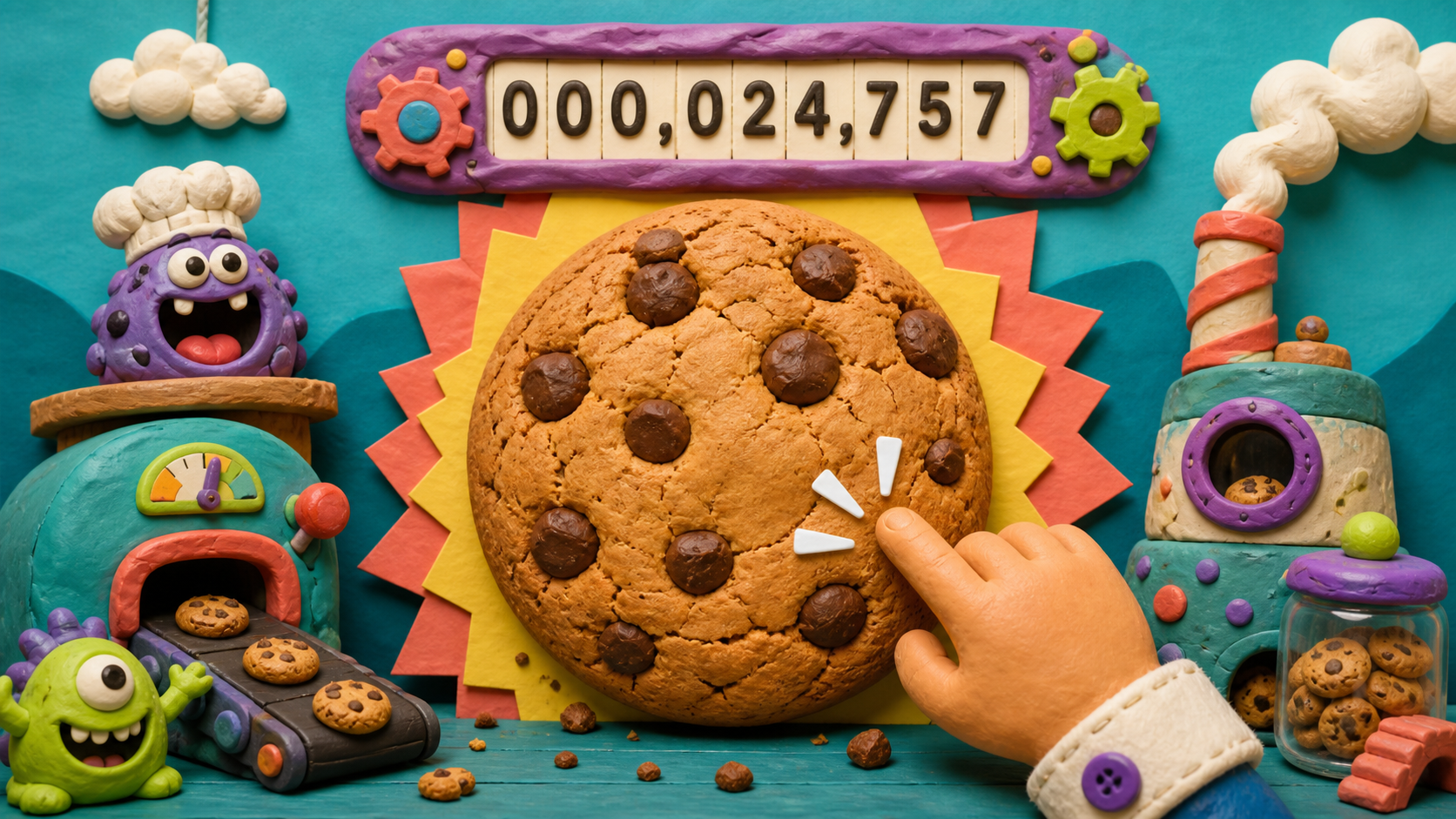
- variable
- a labeled box that remembers a number
- Make a Variable
- the button that creates a new variable
- set to
- put an exact number in the box (like 0)
- change by
- add a number to whatever is already in the box
- readout
- the variable's value shown on the stage
Stage 6 should be done and saved — App 2 (the Voice Changer) is finished. We're starting a third new project now.
Build it
Step 1 — Start the Cookie Clicker project
Click File → New, confirm, and rename it:
Cookie Clicker — First Last
Save Now. (Your Soundboard and Voice Changer are safe in My Stuff.)
Step 2 — Make the cookie sprite
Delete the cat (right-click → delete) and add a cookie: click Choose a Sprite and search for cookie or donut, or Paint your own round cookie on the Costumes tab. Center it on the stage.
Step 3 — Make the cookies variable
Click the Variables category (orange). Click Make a Variable. Name it:
cookies
Keep For all sprites selected and click OK. A small readout appears on the stage showing cookies 0.
Step 4 — Reset the score on the green flag
On the cookie sprite, start the game at zero:
Start every game at zero
when green flag clicked
set [cookies v] to (0)
Step 5 — Add one per click
This is the heart of the clicker:
Each click adds a cookie
when this sprite clicked
change [cookies v] by (1)
set vs change — the two ways to fill the box
set [cookies] to (0) replaces whatever's in the box with an exact number — perfect for resetting to zero. change [cookies] by (1) adds to what's already there — perfect for scoring. Mixing them up is the classic first bug: if you accidentally set to 1 on each click, the score gets stuck at 1 instead of climbing. Set to start; change to score.
Step 6 — Test the clicker
Press the green flag (score resets to 0). Click the cookie over and over. The readout climbs: 1, 2, 3, 4… You made a game that remembers.
Save your project.
Understand it
A variable is the first thing in this course that persists on its own — it remembers a value with no sprite playing and no sound going. Everything before now was momentary: a sound plays and ends, a costume shows and changes. A variable just sits there holding a number until you change it. That permanence is what makes scores, lives, levels, timers, and high scores possible. Every game you've ever played is full of variables.
The split between set and change is worth burning in. set is for exact values — "the score IS zero now." change is for relative ones — "add one to whatever it was." A clicker needs both: set to begin the game cleanly, change to score. Reach for the wrong one and you get the two classic bugs — a score stuck at 1 (used set when you meant change) or a score that never resets (forgot to set on the green flag).
Notice the readout appeared for free the moment you made the variable. Scratch shows variables on the stage automatically, which is a gift for a clicker — the score is the game. You didn't write a single block to display it.
Try this
Try this
Three short experiments. Predict before you run, then test your guess.
Change your click block from change [cookies] by (1) to set [cookies] to (1). Predict what happens to the score as you click. Try it, then put it back to change by 1. What's the difference between set and change, in your own words?
Change the click block to change [cookies] by (5). Now each click is worth 5. Is a clicker more satisfying counting by 1 or by 5? Big jumps feel powerful but reach silly numbers fast. Pick what feels good.
Right now every click is worth the same amount. In Stage 8 you'll add an upgrade button that makes each click worth more — but only if you can afford it. What would the app need to check before letting you buy?
Level up
Make the clicker more satisfying:
- Level 1 — Juice the click. Add the cookie-pop stretch so every click has visual feedback.
- Level 2 — Score style. Right-click the variable readout and try the larger display. Pick the version that feels most game-like.
- Level 3 — Score goal. Add a sign or backdrop that says what number you are trying to beat.
Debug mission
Swap change [cookies] by (1) for set [cookies] to (1) and click several times. The score gets stuck. Put change back and explain why set replaces but change adds.
Test your stage
- You started a new project named Cookie Clicker — First Last.
- You made a variable called cookies with a readout on the stage.
- when green flag clicked → set [cookies] to (0) resets the score.
- when this sprite clicked → change [cookies] by (1) adds on each click.
- Pressing the green flag then clicking the cookie makes the number climb from 0.
- You can explain the difference between set and change.
- Your project is saved (File → Save Now).
- Design check. Is the score readout easy to see? Drag it somewhere clear, or right-click it for a bigger "large readout" display. A clicker is all about watching the number go up.
If it breaks
- The score is stuck at 1. Your click block is set [cookies] to (1) instead of change [cookies] by (1). Set replaces; change adds. Swap it for change by 1.
- The score never goes back to 0. The when green flag clicked → set [cookies] to (0) script is missing or wasn't run. Add it, then press the green flag before clicking.
- Clicking does nothing. Make sure the script is when this sprite clicked (on the cookie) and that you're clicking the cookie on the stage — not the green flag.
- I don't see the score on the stage. In the Variables palette, make sure the checkbox next to cookies is ticked. That checkbox shows or hides the readout.
- The number jumps by a weird amount. You might have two change blocks stacked, or a change-by value other than 1. Check there's exactly one change [cookies] by (1) under the click.
This stage is the conceptual gateway to the back half of the course — variables are the single most important idea here, and the whole logic ramp (Stages 8–9) stands on it. Don't rush it even though the build is short. Spend the saved time letting kids play their clicker and watch the number climb; the satisfaction sells the concept.
The set-vs-change bug is near-universal and it's a good bug — it teaches the difference viscerally. When a kid's score is stuck at 1, don't just fix it; ask them why set keeps it at 1. The lightbulb is worth more than the fix.
Starting a third project: same reassurance as Stage 4. Show My Stuff with all three projects so nobody thinks they erased their earlier work.
Almost everyone should get the click-pop medium stretch — it's the difference between a flat clicker and a fun one, and it's only three extra blocks. The best score hard stretch previews the if block from Stage 8, so it's perfect for fast finishers who are ready for a taste of logic.