Stage 6: One Button, Many Voices
Keep your Scratch project tab open every session. Open in a new tab so you don’t leave the course.
a control panel where buttons send messages to one voice sprite
how sprites talk to each other with broadcasts
App 2 finished — a clean Voice Changer with a single voice brain
Start by showing the problem, then the fix:
- Point at the three buttons from Stage 5. Each one has its own copy of the voice clip and the play logic. Ask: what if I want to change the voice clip? I'd have to fix it three times.
- Add a new Voice sprite (draw a simple face). Give it three scripts: when I receive (normal/chipmunk/monster), each setting a pitch and playing myvoice.
- Change each button to just when this sprite clicked → broadcast (its message). The buttons get tiny; the Voice sprite does all the work.
- Test. Same result, way tidier. Say: the buttons are remotes; the Voice sprite is the speaker.
The big idea
Your voice changer works, but look closely: each button carries its own copy of the voice clip and its own play logic. If you re-record your voice, you'd have to update every button. That's a lot of repeated work — and repeated work is where bugs hide.
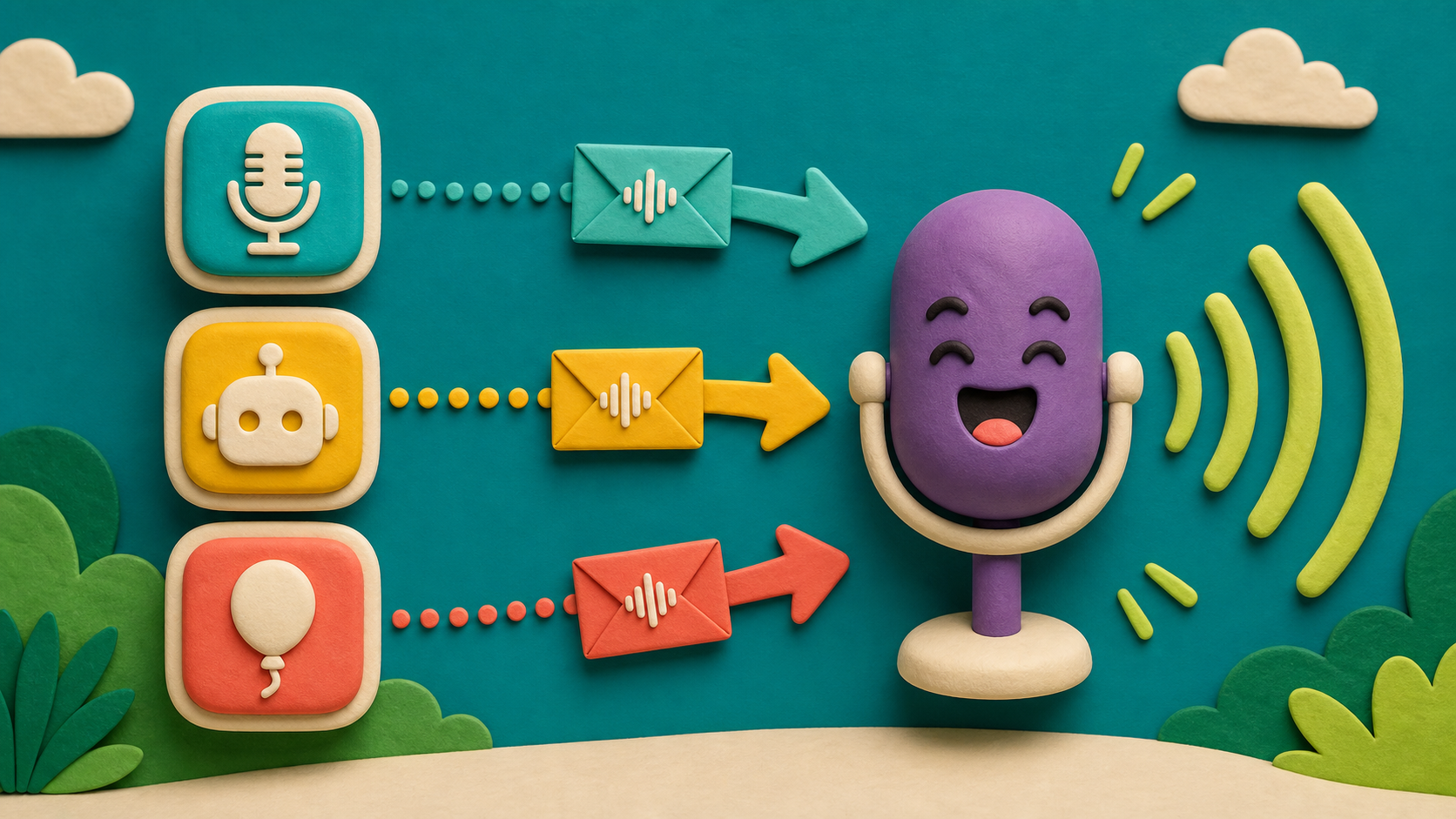
The fix is a broadcast. A broadcast is a message one sprite shouts out and other sprites listen for. Think of it like a walkie-talkie: a button presses the talk button and says "chipmunk!", and a separate Voice sprite hears it and does the chipmunk job.
This splits the app into two clean roles:
- The buttons are remotes — each one does just one thing: broadcast a message.
- The Voice sprite is the brain — it has one script per message (when I receive), and it holds the only copy of the voice clip and the pitch logic.
Now all the voice work lives in one place. Re-record your voice once, on the Voice sprite, and every button still works.
- broadcast
- a message one sprite sends out for others to hear
- when I receive
- a block that runs when a matching broadcast is sent
- message
- the named signal a broadcast carries, like 'chipmunk'
- control panel
- a set of buttons that send commands to do the real work
Stage 5 should be done — you have Normal, Chipmunk, and Monster buttons that each set a pitch and play myvoice.
Build it
Step 1 — Make the Voice sprite (the brain)
Add a new sprite: at the bottom-right, click Choose a Sprite or Paint a new one. Draw a simple face or speaker — this is your Voice sprite. Rename it Voice in the sprite pane.
The voice clip needs to live here now. Click the Voice sprite → Sounds tab → and either record myvoice again, or drag it over. (Easiest: record a fresh myvoice right on the Voice sprite.)
Step 2 — Teach the Voice sprite to listen
On the Voice sprite's Code tab, build one script per message. Start with normal:
Voice sprite — when it hears 'normal'
when I receive (normal v)
clear sound effects
play sound (myvoice v) until done
To make the normal message: click the broadcast dropdown anywhere → New message → type normal. Now it's available in the when I receive dropdown too.
Add the chipmunk and monster listeners the same way:
Voice sprite — chipmunk and monster listeners
when I receive (chipmunk v)
set [pitch v] effect to (100)
play sound (myvoice v) until done

when I receive (monster v)
set [pitch v] effect to (-100)
play sound (myvoice v) until done
Make chipmunk and monster as new messages the same way you made normal.
Step 3 — Turn each button into a remote
Now strip the buttons down. Click your Normal button. Delete its old play logic and replace it with a single broadcast:
Normal button — just a remote now
when this sprite clicked
broadcast (normal v)
Do the same for the others:
Chipmunk and Monster buttons
when this sprite clicked
broadcast (chipmunk v)

when this sprite clicked
broadcast (monster v)
Each button now does one tiny thing: shout its message. The Voice sprite does the listening and the playing.
The buttons got tiny — that's the point
A button used to carry the pitch block, the sound block, and a copy of the clip. Now it carries one broadcast block. All the real work moved to the Voice sprite, in one place. This is a huge idea in real apps: separate the thing that asks for an action (the button) from the thing that does it (the Voice). Change the doer once, and every asker still works.
Step 4 — Keep the green-flag layout
Your buttons keep their when green flag clicked → go to → set size scripts from Stage 5 so the panel still lays out neatly. Add one to the Voice sprite too (put it in the middle or off to the side).
Step 5 — Test the control panel and save
Press the green flag, then click each button. Same three voices as before — but now if you re-record myvoice on the Voice sprite once, all three buttons instantly use the new clip. Save your project. App 2 is done.
Understand it
A broadcast breaks an app into who asks and who does. The button asks ("chipmunk, please!"); the Voice sprite does (sets the pitch, plays the clip). This separation is one of the most important ideas in all of programming — real apps have buttons in one place and the code that runs in another, connected by messages just like this.
The payoff is one source of truth. Before, the voice clip and pitch logic were copied across three buttons; changing your voice meant fixing three sprites and hoping you didn't miss one. Now there's exactly one copy, on the Voice sprite. Fix it once, everywhere updates. Programmers chase this on purpose — don't repeat yourself — because every copy is a chance to get them out of sync.
Broadcasts also scale. Want ten voice effects? Add ten when I receive scripts to the one Voice sprite and ten little remote buttons. The buttons stay dead simple no matter how clever the Voice sprite gets. You motivated this stage by feeling the pain of repetition in Stage 5 — that ache is exactly why this tool exists.
Try this
Try this
Three short thinking checks. Use evidence from the stage you just built.
Re-record myvoice on the Voice sprite with a totally new line. Predict: how many buttons do you have to update for the new voice to play everywhere? Try it. (Before broadcasts, the answer was three.)
Click a button versus broadcasting from the green flag. What's the difference between when this sprite clicked and when I receive? Both start a script — but what triggers each one?
The Voice sprite reacts to messages. In the next app — Cookie Clicker — you'll make a cookie react to clicks and keep a number that grows. What do you think the app needs to remember a score between clicks?
Level up
Make the control panel feel engineered:
- Level 1 — Button roles. Make each button look like a remote control, not a random sprite.
- Level 2 — One new message. Add one new broadcast, like robot, with a matching listener on the Voice sprite.
- Level 3 — One source of truth. Re-record myvoice only on the Voice sprite and confirm every button uses the new clip.
Debug mission
Change one button to broadcast chipmonk while the Voice sprite listens for chipmunk. Click it, watch nothing happen, then fix the spelling by choosing the same message from the dropdown on both blocks.
Test your stage
- You have a Voice sprite that holds the voice clip and the pitch logic.
- The Voice sprite has when I receive scripts for normal, chipmunk, and monster.
- Each button's click script is just broadcast (its message) — nothing else.
- Clicking each button still plays the right voice.
- Re-recording the clip on the Voice sprite updates all buttons at once.
- You can explain why message names must match exactly.
- Your project is saved (File → Save Now).
- Design check. Does your control panel look like a control panel — buttons in a row, a Voice sprite as the centerpiece? Tidy it so a parent could use it without instructions.
If it breaks
- A button does nothing now. Its message and the Voice sprite's when I receive must match exactly. If the button broadcasts chipmunk but the Voice listens for Chipmunk (capital C) or chipmonk (typo), nothing happens. Re-pick both from the dropdown so they're identical.
- I hear no sound at all. The voice clip must be on the Voice sprite now (that's who plays it). If it's only on a button, the Voice sprite has nothing to play. Record or move myvoice onto the Voice sprite.
- Two voices play at once. A button might still have its old play logic and a new broadcast. Each button should have only the broadcast block. Delete any leftover play sound on the buttons.
- I can't find my message in the dropdown. Make it: click any broadcast block's dropdown → New message → type the name. Then it appears in both broadcast and when I receive menus.
- The normal voice is squeaky again. The Voice sprite's when I receive (normal) script needs clear sound effects before it plays, just like the Normal button did.
Broadcasts are the hardest idea in App 2 — pace this stage slowly and motivate it with the pain first. Before adding a single broadcast, ask the room: "what if you want to change your voice clip? How many buttons would you fix right now?" When they say "three," the broadcast solution lands as a relief, not a random new block.
The number-one bug, by far: message name mismatches. A button broadcasts chipmunk, the Voice listens for Chipmunk or a typo, and nothing happens with no error. Teach kids to always pick messages from the dropdown, never retype them. When a button "does nothing," check the names match before anything else.
The number-two bug: leftover play logic on a button causing double sounds. When you convert a button to a remote, the old play sound has to go — only the broadcast stays.
This stage rewards the kids who kept their Stage 5 work tidy. If someone's Stage 5 is a mess, it's fine to have them keep three independent buttons and treat broadcasts as a demo they watch — the concept matters more than a perfect refactor at this age.
If a student nails it early, the face reaction hard stretch makes the best showcase moment in the whole Voice Changer.