Stage 5: Chipmunk and Monster Voice
Keep your Scratch project tab open every session. Open in a new tab so you don’t leave the course.
three buttons that play your voice normal, high (chipmunk), and low (monster)
how the pitch effect bends a sound up or down
a working voice changer with three personalities
This is the payoff stage — make it loud and fun. Demo all three before students build:
- On the normal button: when this sprite clicked → clear sound effects → play sound (myvoice) until done.
- Duplicate it. On the copy: set [pitch] effect to (100) → play sound (myvoice) until done. Click it — chipmunk!
- Duplicate again. On this one: set [pitch] effect to (-100). Click it — monster!
- Say it plainly: Scratch can't make a voice faster or slower — but high pitch already sounds fast and squeaky, and low pitch sounds slow and deep.
The room will lose it when the monster voice hits. Lean in.
The big idea
Now the magic. We take the same voice clip and bend it into different characters using one block: set [pitch] effect to ().
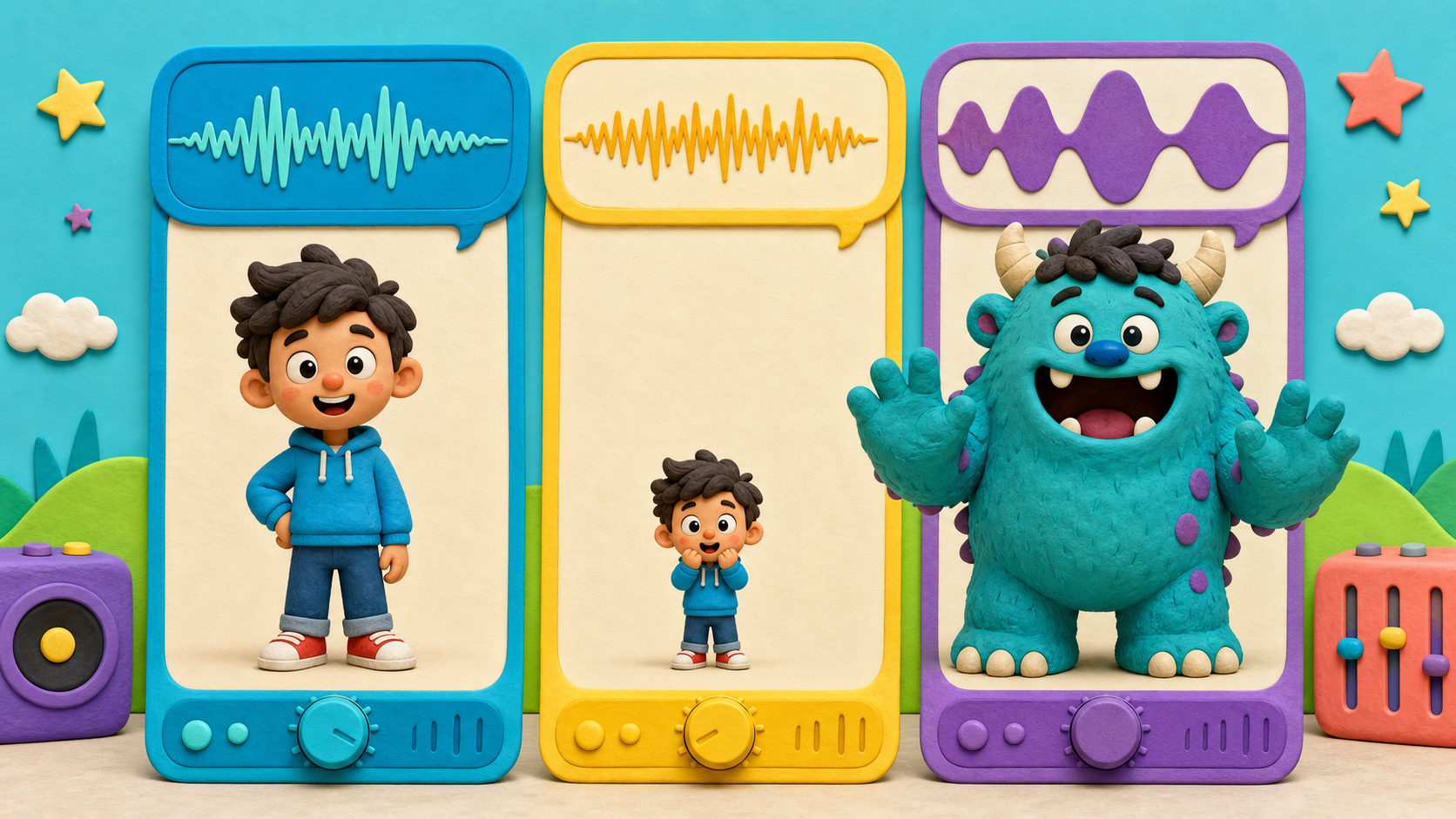
Pitch is how high or low a sound is. A bird is high pitch; a drum is low pitch. The pitch block shifts your recording:
- A big positive number (like 100) pushes your voice way up → a squeaky chipmunk.
- A big negative number (like -100) drags it way down → a growly monster.
- Zero (or clear sound effects) is your true voice.
Each button sets a different pitch, then plays the same clip. Same voice, three personalities.
You might expect a voice changer to have a fast and slow button. Here's the truth: Scratch can't change how fast a recorded sound plays — there's no speed block. But you don't need one! Bending the pitch up already sounds fast and squeaky, and bending it down sounds slow and deep. Pitch does the whole job. We're using exactly the tools Scratch really has — no pretend blocks.
- pitch
- how high or low a sound is
- set pitch effect
- a block that bends a sound up (high) or down (low)
- effect
- a change to how a sound plays; it stays until you reset it
- chipmunk
- what a voice sounds like at very high pitch
- monster
- what a voice sounds like at very low pitch
Stage 4 should be done — you have the Voice Changer project with a button that plays myvoice, and a when green flag clicked → clear sound effects script.
Build it
Step 1 — Turn your button into the "Normal" button
Click your voice button. Make its click script clear effects first, so it always plays clean:
Normal voice button
when this sprite clicked
clear sound effects
play sound (myvoice v) until done
Draw or label this button Normal on the Costumes tab. Click it — your true voice plays.
Step 2 — Make the Chipmunk button
Right-click the Normal button → duplicate. On the copy, change the click script to set a high pitch before playing:
Chipmunk button
when this sprite clicked
set [pitch v] effect to (100)
play sound (myvoice v) until done
To build the pitch block: from Sound, drag set [ ] effect to ( ), click its dropdown, and choose pitch. Type 100 in the number slot.
Label this button Chipmunk, give it a different color, and drag it next to Normal. Click it — squeaky!
Step 3 — Make the Monster button
Duplicate again. On this copy, set a low (negative) pitch:
Monster button
when this sprite clicked
set [pitch v] effect to (-100)
play sound (myvoice v) until done
To type a negative number, just click the slot and type -100 (with the minus sign).
Label it Monster, color it, and place it next to the others. Click it — growly!
Step 4 — Lay out the three buttons
Give each button a when green flag clicked → go to x: () y: () → set size to () script so they sit in a neat row (like you did in Stage 3):
- Normal: x: -130, y: 0
- Chipmunk: x: 0, y: 0
- Monster: x: 130, y: 0
Why each button still sets its OWN pitch
The pitch effect sticks. If the Chipmunk button only said "play sound" without setting the pitch each time, it would play whatever pitch the last button left behind. By having every button set its own pitch (and Normal clear it) right before playing, each button always sounds the same no matter what you clicked before. Set-the-effect-then-play is the safe pattern.
Step 5 — Test all three and save
Press the green flag (lays out the buttons, resets to normal). Then click Normal, Chipmunk, Monster in turn. Three voices from one clip. Save your project.
Understand it
The pitch effect works by stretching or squishing the sound wave. Push the pitch up and the wave gets tighter and faster-wiggling — that's why high pitch sounds squeaky and sped-up. Pull it down and the wave stretches out, sounding deep and slow. One control gives you both the high/low and the fast/slow feeling, which is exactly why Scratch doesn't need a separate speed block.
The reason every button sets its own pitch is the persistence trap from Stage 4, made real. Effects stay until changed. If only the Chipmunk button set the pitch, then after clicking it, your Normal button would also sound squeaky — because the effect never got cleared. By making Normal clear sound effects and the others set pitch before playing, each button is self-contained: it guarantees its own sound every time. Pros call this making each action idempotent — fancy word, simple idea: clicking a button always does the same thing.
Notice you built three buttons but only invented one new block (set pitch). The rest — duplicate, click event, play sound, green-flag layout — you already knew. New ideas are small when they sit on skills you already have.
Try this
Try this
Three short thinking checks. Use evidence from the stage you just built.
Click Chipmunk, then immediately click Normal. Predict: does Normal sound squeaky or true? Why? (Hint: what does Normal do before it plays?) Try it.
Change the Chipmunk button from 100 to 50, then to 150. Listen each time. Which pitch is the funniest chipmunk — a little squeaky or a lot? There's no right answer; pick the one you'd demo.
You now have three buttons that each set a pitch and play the same clip. That's a lot of repeated blocks. In Stage 6 you'll learn broadcasts — a way for buttons to send a message to one voice sprite instead of each playing the sound themselves. Why might that be tidier than three copies?
Level up
Make the voice changer feel like a character machine:
- Level 1 — Tune the numbers. Try pitch 50, 100, and 150. Keep the funniest chipmunk value.
- Level 2 — Character buttons. Draw each button so it matches the sound: calm, tiny, giant, spooky, or robotic.
- Level 3 — Voice cast. Add one extra pitch button and name the character it creates.
Debug mission
Break the Normal button on purpose by removing clear sound effects, then click Chipmunk followed by Normal. If Normal stays squeaky, fix it by adding clear sound effects back to the Normal button before it plays.
Test your stage
- You have three buttons: Normal, Chipmunk, Monster.
- Normal clears effects, then plays — it always sounds like your true voice.
- Chipmunk sets pitch to a high number (like 100), then plays.
- Monster sets pitch to a low number (like -100), then plays.
- Pressing the green flag lays the three out in a row.
- You can explain why every effect button sets its own pitch before playing.
- Your project is saved (File → Save Now).
- Design check. Click all three in a row. Are they clearly different from each other? If chipmunk and normal sound too similar, push the pitch higher (try 150).
If it breaks
- My Normal button sounds squeaky. It's missing clear sound effects at the start, so it's playing whatever pitch the last button left. Add clear sound effects as the first block under its click event.
- All my buttons sound the same. The set pitch block might be missing or set to 0. Check that Chipmunk is a big positive number and Monster is a big negative number (with the minus sign).
- I can't type a negative number. Click right in the number slot and type the minus sign first, then the number: -100. If it won't take it, delete what's there and retype.
- The pitch dropdown only shows "pan left/right." Click the little arrow on the set [ ] effect to block and choose pitch from the menu. The block has two effects to choose from; you want pitch.
- The effect doesn't reset between runs. Make sure your when green flag clicked → clear sound effects script from Stage 4 is still there. Press the green flag before testing.
This is the emotional high point of App 2 — the monster voice gets a guaranteed laugh. Let the room be loud for a few minutes, then reel it back in for the layout step.
The single most common bug: a Normal button that stays squeaky because it's missing clear sound effects. This is the persistence idea from Stage 4 biting for real. When a kid says "my normal voice is broken," check that block first — it's the fix 95% of the time.
The pitch dropdown trips kids up: the block is set [ ] effect to, and they have to click the dropdown to switch it from the default to pitch. Demo that click specifically.
Be ready for the honesty question: "why isn't there a fast button?" The answer is in the lesson — Scratch genuinely has no speed effect, and pitch covers the fast/slow feeling. Don't fake a block; the real tools are plenty. This is a good moment to teach that real tools have real limits and good makers work with them.
The medium stretch (tiny-mouse/giant) is pure fun and almost everyone should get to it. The hard stretch (pan) only really lands with headphones — skip it if the lab has none.