Stage 2: Record Your Own Meme Sounds
Keep your Scratch project tab open every session. Open in a new tab so you don’t leave the course.
buttons that play sounds you recorded with your own voice
how to record and trim a sound in Scratch
a two-button soundboard full of your own memes
Show the recorder before students try it — the first recording is always the wobbly one:
- Click the Sounds tab. Hover the speaker icon at the bottom-left → Record.
- Press the big red button, say "boop!", press Stop.
- Drag the two trim handles in from the edges to cut the silence. Press play to check.
- Click Save. The new sound shows up in the list with the name you give it.
- Back on the Code tab, change a play sound dropdown to the new recording.
Tell the room: short and punchy beats long and rambly. A one-second "BONK" is a better meme than a ten-second story.
The big idea
Last stage your button played Meow — a sound that came with Scratch. Today the sounds become yours.
The Sounds tab has a built-in recorder. You press record, make a noise with your voice, press stop, and Scratch turns it into a sound block you can play. A recording is just a sound you captured yourself instead of borrowing from the library. This is where the "meme" in this course is born — every funny noise is one you made.
The best sounds are tiny and specific. Think dramatic banana slip, sleepy cloud yawn, tiny trumpet womp, crumb boss laugh, wait what?, or one perfect BONK. Do not copy a clip from YouTube or TikTok. You are making original button jokes that only this room could have made.
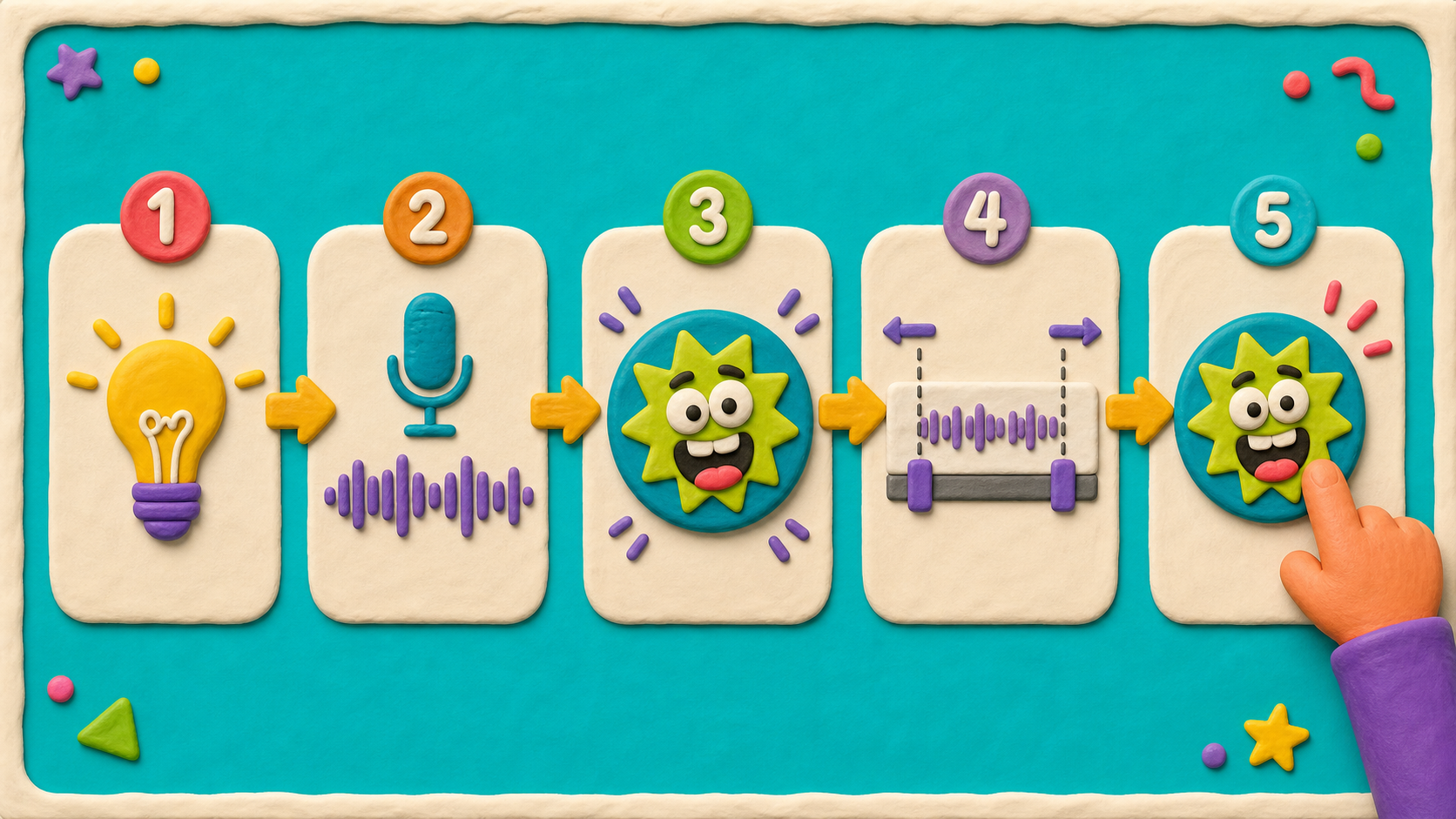
Two skills make a recording good:
- Recording — pressing the red button, making your sound, pressing stop.
- Trimming — dragging the handles to cut off the silence at the start and end, so the button fires instantly when clicked.
We'll also learn a tidy trick: instead of building a second button from scratch, we duplicate the first one. Duplicating copies the sprite and its click-to-play script, so the new button already knows how to work — you just point it at a different sound.
- recording
- a sound you captured yourself with the microphone
- recorder
- the tool on the Sounds tab that captures your voice
- trim
- cut the silence off the start and end of a sound
- duplicate
- make a full copy of a sprite, including its code
Stage 1 should be done — you have one sprite with a when this sprite clicked → play sound until done script that works when you click it.
Build it
Meme recipe — make one complete joke first
Before you record ten sounds, make one complete meme button:
- Joke idea: choose a tiny moment, like a banana slipping or a sleepy cloud yawning.
- Sound: record the noise yourself — BONK, tiny womp, sleepy yawn, squeaky laugh.
- Button art: decide what the button should look like so the joke makes sense before anyone clicks.
- Timing: trim the sound so the funny part starts instantly.
- Test: click it three times. If nobody smiles, re-record or redraw one piece.
Step 1 — Open the recorder
Click the Sounds tab at the top-left of the editor.
At the bottom-left, hover over the round speaker icon. A little menu pops up. Click Record.
The first time, your browser may ask "Allow Scratch to use your microphone?" — click Allow. (If you don't allow it, the recorder can't hear you. Ask a coach if you don't see the pop-up.)
Step 2 — Record your first meme sound
You'll see a big red Record button and a sound wave area.
- Press the red button.
- Make a short, punchy sound with your voice — "BONK!", "wheee", a silly laugh, a "nope", a tiny "womp", or a dramatic "I slipped first!". Keep it under two seconds.
- Press Stop.
Press the play arrow to hear it back. Not happy? Press Re-record and try again. The wobbly first take is normal.
Step 3 — Trim the silence
Look at the sound wave. There's usually quiet space before and after your noise. Drag the trim handles (the bars at the left and right edges) inward until they hug just the loud part.
Trimming matters: a trimmed sound fires the instant you click. An untrimmed one has an awkward pause first. Press play once more to check it sounds snappy.
Step 4 — Name it and save
Above the sound wave, there's a name field (it probably says "recording1"). Rename it something you'll recognize, like:
bonk
Click Save. Your recording now appears in the sounds list on the left.
Step 5 — Point your button at your sound
Go back to the Code tab. Click your button sprite. Find the play sound block from Stage 1 and click its dropdown. Your recording (bonk) is now in the list. Pick it.
Your button, now playing YOUR sound
when this sprite clicked
play sound (bonk v) until done
Click the sprite on the stage. It plays your sound. That's a real meme button.
Step 6 — Duplicate the button for a second sound
Now the tidy trick. Instead of building a whole new button, copy this one.
In the sprite pane, right-click your button sprite and choose duplicate. A copy appears (named something like "Sprite2"). It already has the click-to-play script — that came along for free.
duplicate copies the code too
When you duplicate a sprite, Scratch copies everything — its costumes, its sounds, and its scripts. That's why the new button already works without you adding a single block. Build one good button, then duplicate it as many times as you want. This is how real soundboards get a dozen buttons fast.
Step 7 — Record a second sound and aim the copy at it
On your new button sprite:
- Go to the Sounds tab and Record a different sound (a new catchphrase, a tiny trumpet noise, a cartoon "uh-oh!", a "yeah!"). Trim it, name it, save it.
- Go back to the Code tab and change this button's play sound dropdown to the new recording.
- Drag the second button to a different spot on the stage so it's not on top of the first.
Click each button. Two buttons, two of your own sounds. Save your project.
Before moving on, click the first button, then click the copy. If they still play the same recording, the copy is not finished yet — change the copy's dropdown until every button has its own joke.
Understand it
A recording is just a sound you made instead of one you borrowed. That tiny change is the whole heart of this course. A library sound is anyone's; a recording is yours — which is exactly why it's funnier and exactly why it's safe to share (no copied internet clips).
Trimming is the difference between a button that feels snappy and one that feels broken. The click should land on the sound immediately. A second of dead air at the front makes students think the button didn't work, so they click again, and now it double-fires. Tight trims make tidy buttons.
Duplicating teaches a big-kid idea: don't rebuild what already works. You built one good button — click event, sound block, position. Copying it gives you the same working machine every time, and you only change the one thing that's different (the sound). Programmers call this reuse, and it's how a soundboard goes from one button to twenty without twenty times the work.
Try this
Try this
Three short thinking checks. Use evidence from the stage you just built.
You're about to duplicate a button. Predict: will the copy already play a sound when clicked, or will it be silent until you add blocks? Why? Duplicate it and find out.
Record the same word twice — once whispered, once shouted — and put them on two buttons. Which one is funnier as a meme? Loud isn't always better. A tiny whispered "...help" can beat a scream.
Your buttons still look like cats. In Stage 3 you'll draw your own button art and lay them out in a grid. What shape or picture would make a "BONK" button obvious before anyone even clicks it?
Level up
Make the board funnier before you test:
- Level 1 — Three takes. Record the same sound three different ways — tiny, dramatic, and whispered — then keep the best one.
- Level 2 — Sound contrast. Make one button short and sharp, and the other long enough to feel like a reaction. They should not feel like copies.
- Level 3 — Mini theme. Give your two sounds a theme, like Snack Boss, Space Noises, Tiny Sports Announcer, or Dramatic Weather.
Debug mission
Duplicate your first button and click the copy before changing anything. It should play the old sound. Now fix the copy by changing only its play sound dropdown. That is the difference between copying a working button and finishing a new button.
Test your stage
- You recorded at least two of your own sounds in the Sounds tab.
- Each recording is trimmed so it fires the instant you click.
- At least one button is a complete meme: joke idea, original sound, drawn-button idea, tight timing, and a successful test click.
- You have two button sprites, each playing a different recording.
- Each copied sprite has the correct sound chosen in its own play sound dropdown.
- You can explain why duplicate copies code and why the copied dropdown still needs changing.
- The two buttons sit in different spots on the stage (not overlapping).
- Your project is saved (File → Save Now).
- Design check. Click both buttons back to back. Do the two sounds feel different enough to be worth two buttons? If they're nearly the same, re-record one to add variety.
If it breaks
- The recorder can't hear me. Your browser may have blocked the microphone. Look for a mic icon in the address bar and set it to Allow, then reopen the recorder. If there's no pop-up at all, ask a coach to check the iMac's mic permissions.
- My sound has a long pause before it plays. It isn't trimmed. Go to the Sounds tab, click the recording, and drag the left trim handle in to cut the silence at the start.
- My duplicate button plays the same sound as the first one. That's expected right after duplicating — the copy inherited the original's sound. Change its play sound dropdown to the new recording.
- Both buttons are stacked on top of each other. Duplicates appear right on top of the original. Drag the new one to an empty part of the stage.
- My recording is way too long and rambly. Re-record it shorter, or trim hard. The best meme sounds are one to two seconds. Long sounds make a button feel slow.
Microphone permissions are the whole ballgame this stage. If you didn't test the lab mics during Setup, do it now before the room melts down. The browser asks once per site; a kid who clicks "Block" by accident needs the mic icon in the address bar reset to "Allow." Walk the room as soon as recording starts.
Expect a noisy room — fifteen kids recording "BONK" at once is loud and that's fine, but it can bleed into each other's recordings. Headsets with mics help if you have them. If not, stagger recording or send half the room to draw (a peek at Stage 3) while the other half records.
The duplicate trick is a genuine lightbulb moment — students expect to rebuild the whole button and are delighted it copies the code. Make a big deal of it; it pays off again in Stage 5.
Watch for the un-trimmed-sound trap: a button with a pause feels broken, the kid clicks twice, it double-fires, and they think they have a bug. The fix is always "trim the front." Demo trimming on one kid's sound for the whole table to see.