Setup
Keep your Scratch project tab open all week. Open in a new tab so you don’t leave the course.
a free Scratch account and a saved blank project
where Scratch lives, how to save, and where the Sounds and Costumes tabs are
a workspace that's ready to build three apps
Before campers touch their iMacs, show the whole room:
- Open Scratch in a new tab. Point at the Create button.
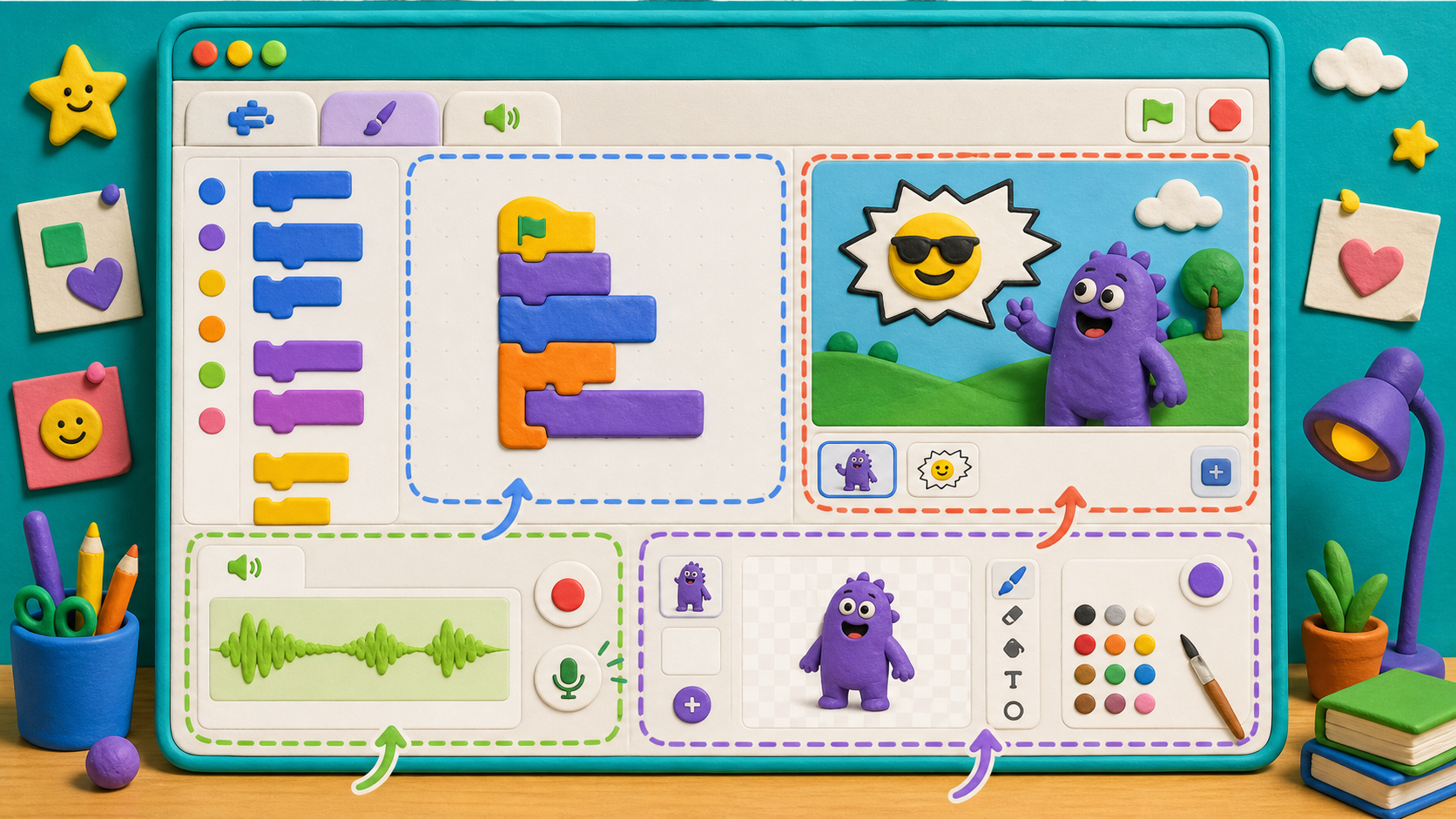
- Show the editor — sprite pane (bottom right), stage (top right), code area (left), block palette (far left).
- Sign in or create a free account. Save a blank project named "App Studio — Coach Demo."
- Open the Sounds tab and the Costumes tab. Point out the Record button (Sounds) and the paint tools (Costumes). This course uses those two tabs more than any game course — campers make their own memes there.
The big idea
The whole course uses one tool: Scratch. It runs in your browser. You don't install anything. You sign in once, and Scratch saves your work to your account so you can come back to it the next day.
This course is a little different from a normal game course. You won't just use sounds and pictures that already exist — you'll make your own. That happens in two special tabs at the top of the editor:
- The Sounds tab has a microphone Record button. That's where your meme noises and your voice come from.
- The Costumes tab has paint tools. That's where you draw your own buttons.
Today is small but important. By the end of setup, every camper has a Scratch account, a blank project saved with their name, and has found the two tabs the whole course depends on.
- Scratch
- the free website where we build the apps
- account
- your spot on Scratch so your project is saved
- project
- an app we are building, saved as a file in your account
- editor
- the screen where you drag blocks to build
- Sounds tab
- the tab where you record and add sounds
- Costumes tab
- the tab where you draw and change a sprite's looks
Build it
Step 1 — Open Scratch and create an account
Click the Scratch button at the top of this page. It opens scratch.mit.edu in a new tab.
In the top-right corner you'll see two buttons: Join Scratch and Sign in.
- If your camp gave you a username and password, click Sign in and use those.
- If you don't have one, click Join Scratch and follow the steps. You'll need a username, a password, and a grown-up's email address. Your username can be anything that's not already taken — it doesn't have to be your real name.
Once you're signed in, your username shows up in the top-right corner. That means Scratch will save your work.
Step 2 — Create a new project
Click Create in the top menu. A new project opens.
You'll see a friendly orange cat in the middle of a white stage. That's Sprite1, also called Scratch Cat. Every brand-new Scratch project starts with this cat. We'll use it in Stage 1.
Step 3 — Name your project and save it
At the top of the editor, find the project name field. It probably says "Untitled-N."
Click on it and rename it to:
App Studio — First Last
Use your real name. "App Studio — Alex Chen." That way coaches can find your project easily during the week.
Then click File → Save Now at the top. (Scratch also auto-saves, but pressing Save Now is the safe move.)
Step 4 — Find the four panels
The Scratch editor has four main panels. Touch each one with your mouse so you know where it is:
- Block palette (far left) — the rainbow of colored blocks you drag from. Categories are Motion, Looks, Sound, Events, Control, Sensing, Operators, Variables, My Blocks.
- Code area (middle) — where you snap blocks together to build your scripts.
- Stage (top right) — where the app runs. Click the green flag to start; click the red stop sign to stop.
- Sprite pane (bottom right) — the list of every sprite (button/character) in your app. Right now there's just Scratch Cat (Sprite1).
Step 5 — Find the two tabs this course lives in
Look at the top-left of the editor. There are three tabs: Code, Costumes, and Sounds. You'll use all three this week, but two of them are special for this course:
- Click the Sounds tab. You'll see one sound (Meow). At the bottom-left, hover over the speaker icon — a menu pops up with Record. Don't record yet — just find the button. This is where your meme sounds will come from in Stage 2.
- Click the Costumes tab. On the left you'll see paint tools — a brush, a fill bucket, shapes, and a text tool. This is where you'll draw your own buttons in Stage 3.
Click back to the Code tab when you're done. Save again (File → Save Now).
Understand it
The Scratch account is what makes today work for the whole week. Without an account, your project disappears every time you close the tab. With an account, your project waits for you in My Stuff — you can open it on any iMac in the lab. By Friday, the same account holds three finished apps.
The project name matters more than it sounds. Camps usually have 10–20 kids all building at the same time, so coaches need to glance at a list and find yours. "App Studio — Alex Chen" sorts cleanly. "my app lol" does not.
We spent Step 5 finding the Sounds and Costumes tabs on purpose. In most Scratch courses those tabs barely matter — you grab a sprite from the library and start coding. In this course they're the whole point: the Record button is where your memes are born, and the paint tools are where your buttons get their look. Knowing where they live now means Stage 2 and Stage 3 won't be the first time you go looking.
Test your setup
- You are signed in to Scratch — your username appears in the top-right.
- You created a new project from the Create button.
- Your project is named App Studio — First Last (with your real name).
- You clicked File → Save Now at least once.
- You can point to all four panels: block palette, code area, stage, sprite pane.
- You found the Record button on the Sounds tab and the paint tools on the Costumes tab.
- Design check. Close the tab on purpose. Reopen Scratch, sign in, click My Stuff, and find your project. Open it. Your work is still there.
If it breaks
- Scratch won't let me create an account. Your camp may have an age policy that needs a parent's email. Ask a coach — they may have a pre-made class account for you.
- I forgot my password. Use the Forgot password? link on the sign-in page. If your camp made the account, ask the coach.
- I clicked Create but I see a blank gray page. Refresh the tab. Some browsers need a moment. If it's still blank, ask a coach to try a different browser (Chrome and Firefox work best).
- I can't find the Record button. It's on the Sounds tab, not the Code tab. Hover over the round speaker icon at the bottom-left — a little menu pops up, and Record is in it.
- My project name has weird characters in it. Stick to letters, numbers, spaces, and dashes. Avoid emoji or symbols — they sometimes confuse the auto-save.
The single biggest setup failure is account creation for under-13 kids. Scratch requires a parent's email for new accounts. If your camp has a registration form, pre-create the accounts before camp starts and hand each camper a slip with username + password. This saves 20 minutes per kid.
The second biggest issue: a kid who creates an account but never signs in — they're working in a guest project that disappears at the end of the day. Walk the room before Stage 1 and confirm every iMac shows a username in the top-right.
This course leans hard on the microphone. Before camp, test that the iMacs' built-in mics work in Scratch (Sounds tab → Record → allow the browser mic permission). Some lab images block mic access by default — sort that out now, not in Stage 2 with 15 kids waiting. If mics are truly unavailable, every "record your own" step can fall back to Scratch's built-in sound library, but the course is far better with real recording.