Stage 2: Sphere Staircase
You should have finished Stage 1: Ascending Walls. Your obby has two checkpoint pads (blue start, red top-of-climb) and a three-block climbing wall between them.
a curved climb made from spheres and the third checkpoint
how shape changes difficulty, plus how a script listens for a Touched event
your first real Lua script — a five-line listener that prints to the Output window
The big idea
Stage 1's climb used blocks. Stage 2 uses spheres.
The sizes and checkpoint pattern stay the same. Only the shape changes. That lets you feel one design idea clearly: change one thing, learn what it does.
Spheres are harder because the top is round. The player has to aim for the center, not just hop.
Stage 2 is also where scripts start. The first script is small, but it teaches the loop every later script uses: type code, run it, read Output.
- Shape
- a property on a Part — Block, Sphere, Wedge, or Cylinder
- Touched event
- fires every time another part collides with this one
- :Connect
- attaches a function so it runs whenever the event fires
- anonymous function
- a `function(args) … end` you pass directly to :Connect, no name needed
- writes a message to the Output window so you can see what your script is doing
Build it
Step 1 — Build the sphere staircase
Build three sphere parts. Use the same sizes as Stage 1's blocks, but set Shape = Sphere.
Round tops have almost no flat landing. Aim each jump at the center.
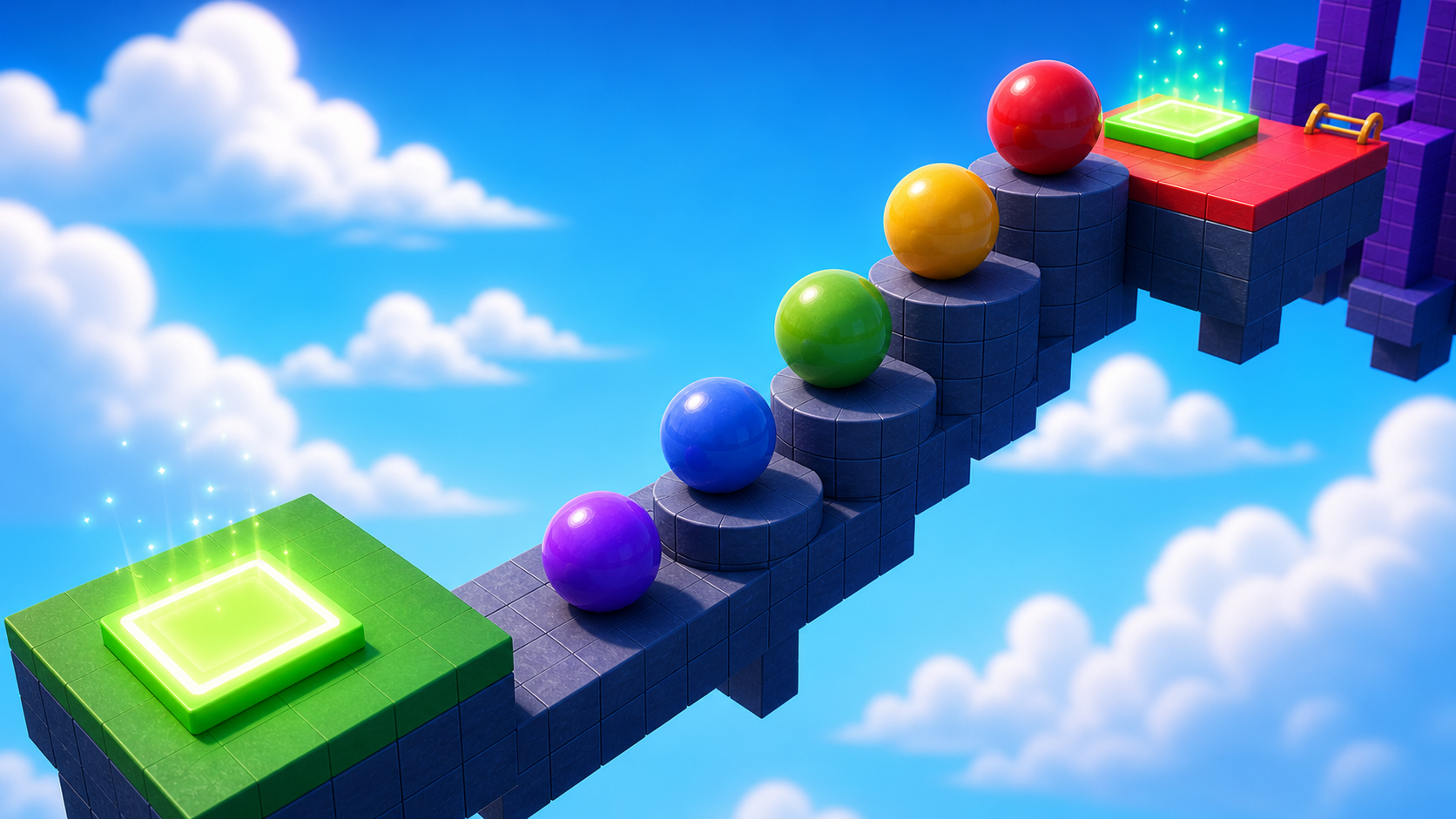
Insert three new parts (Workspace → + → Part three times). For each one, change Shape in Properties from Block to Sphere, then tune the rest to match these recipes.
Build this partJumpSphere_Short
SphereOpen recipe
JumpSphere_Short
Sphere- Size
- 4 × 4 × 4
- Color
- Bright orange
- Material
- Neon
- Anchored
- ✓ Yes
- Place
- In front of the Stage 2 red pad — the start of this climb
Build this partJumpSphere_Mid
SphereOpen recipe
JumpSphere_Mid
Sphere- Size
- 4 × 4 × 4
- Color
- Bright orange
- Material
- Neon
- Anchored
- ✓ Yes
- Place
- Right next to JumpSphere_Short, 3 studs higher
Build this partJumpSphere_Tall
SphereOpen recipe
JumpSphere_Tall
Sphere- Size
- 4 × 4 × 4
- Color
- Bright orange
- Material
- Neon
- Anchored
- ✓ Yes
- Place
- Right next to JumpSphere_Mid, 3 more studs higher
Shortcut: build the first sphere, then press Ctrl+D twice to duplicate it. Then move and resize each copy.
Press ▶ Play and try the climb. You should feel the difference immediately — the round tops make jumping require precision the flat blocks did not.
Step 2 — Add the third checkpoint
Same SpawnLocation + Team pattern as Stage 1. By the end of the course you will have done this ten times.
Build this partSpawnLocation (Stage 3 — top of the sphere climb)
BlockOpen recipe
SpawnLocation (Stage 3 — top of the sphere climb)
Block- Size
- 6 × 1 × 6
- Color
- Bright green
- Material
- Plastic
- Anchored
- ✓ Yes
- Place
- On top of JumpSphere_Tall
Also: check AllowTeamChangeOnTouch. Uncheck Neutral. Set TeamColor to Bright green. In Teams, insert a Team named 'Stage 3', uncheck AutoAssignable, set its TeamColor to Bright green.
Press Play, climb the spheres, touch the green pad, reset. You should respawn on green.
Step 3 — Write your first script
Now add a Script to the bottom sphere.
It will print the name of anything that touches the sphere. When you walk on it, Output will show your character's body parts one by one.
In Explorer, right-click JumpSphere_Short → Insert Object → Script. A new Script appears nested under the sphere. Double-click it to open the Script editor.
Pass 1 — Get the sphere and confirm the script is running
Delete the placeholder print("Hello world!"). Type this:
local sphere = script.Parent
print("Script attached to:", sphere.Name)
Press Play and open Output. You should see "Script attached to: JumpSphere_Short".
Stop. That proves script.Parent is the sphere.
Pass 2 — Listen for the Touched event
Extend the script:
local sphere = script.Parent
print("Script attached to:", sphere.Name)

sphere.Touched:Connect(function(otherPart)
  print("Something touched the sphere:", otherPart.Name)
end)
Press Play. Walk onto the sphere and watch Output.
You will see lines like "Something touched the sphere: LeftFoot" and "Something touched the sphere: HumanoidRootPart". Each line is one collision Roblox detected.
You wrote a real script that listens for an event. Stage 4 will replace print with the line that actually kills the player — same pattern, different consequence.
Understand it
A Touched event is Roblox saying, "something just collided with this part."
Your script does not check forever by itself. It tells Roblox: "call this function whenever a touch happens."
That pattern is an event listener. It returns in Stage 4, Stage 7, Stage 8, and Stage 10.
The anonymous function is function(otherPart) ... end.
It runs every time the event fires. otherPart is the part that touched the sphere, so your script knows what touched it.
The print calls are training wheels. They answer: "is this code running?" and "what value did Roblox give me?"
Read Output often. By Stage 5, you will need it.
How this script listens for a touch
Read this from top to bottom like Roblox does. First the script finds the sphere, then it proves it started, then it tells Roblox what to do later when something touches the sphere.
local sphere = script.Parent
print("Script attached to:", sphere.Name)

sphere.Touched:Connect(function(otherPart)
  print("Something touched the sphere:", otherPart.Name)
end)
Line 1The script finds the object it lives inside.
In Explorer, the Script is nested under JumpSphere_Short. `script.Parent` means 'my parent in Explorer,' so this line gives the code a short name, `sphere`, for the actual sphere in the game.
Line 2Print proves the script started.
This is the same check you ran in Pass 1. If Output does not show `Script attached to: JumpSphere_Short`, do not keep adding code yet. First fix where the Script is or whether it is disabled.
Line 4Tell Roblox what to do later.
`Touched` is an event. `:Connect(function(otherPart)` means: when the sphere gets touched later, run the code inside this function. The function does not run on line 4; it waits until the collision happens during Play.
Line 5Use the thing Roblox hands to the function.
When you walked onto the sphere, Output showed body-part names like LeftFoot and HumanoidRootPart. Those names came from `otherPart.Name`. Roblox passed `otherPart` into the function so your script knows what touched the sphere.
Try this
Try this
Three short experiments. Predict before you run, then test your guess.
Change sphere.Touched:Connect to sphere.Touched:Connect's opposite — comment out the :Connect line entirely by putting -- at the start. Press Play, walk on the sphere. What changes in the Output? Predict before you run.
Build a fourth sphere with Shape = Block (just keep the cube). Place it next to the others. Climb both the spheres and the new block. Which is harder to jump on, and why? Use the words flat top and aim in your answer.
Look at your script. The line sphere.Touched:Connect(function(otherPart) … end) is going to appear in almost every later stage. Which words in that line do you think will change in Stage 4 (KillBrick), and which will stay the same?
Test your stage
- Climb the three spheres from the red pad to the green pad.
- Touch the green pad, reset, and confirm you respawn on green.
- Open the Output window while playing. Walking on JumpSphere_Short prints "Something touched the sphere: [body part name]" repeatedly.
- Stop the game. Look at the Output. The very first line should be "Script attached to: JumpSphere_Short" — that means your script ran at startup.
- Design check. Stand at the red pad. Can you read the climb's route in under two seconds? Spheres are subtle — if the route is confusing, increase the height jumps between them so the path reads more obviously upward.
If it breaks
- Output is empty. Make sure the Script is inside JumpSphere_Short,
Disabled = false, and Play is running. - Startup prints, but walking does nothing. Re-check
sphere.Touched:Connect(...). The colon beforeConnectmatters. - My character falls through the sphere. CanCollide is off. Click the sphere, find CanCollide in Properties, turn it on.
- The Output is so flooded with messages I can't read anything. That's correct — every body part touching prints a separate line. You can clear Output between runs (right-click in Output → Clear) to start fresh.
At ages 10–13, the conceptual leap of Stage 2 is the :Connect(function() … end) syntax — three new things at once (: notation, Connect, anonymous function). Walk every camper after they type the second pass. If a camper's Output is silent when they walk on the sphere, 90% of the time it's a missing colon (.Connect instead of :Connect) or the function block being misformatted (no end).
- The
print("Script attached to:", sphere.Name)line on its own is critical pedagogy — it proves the script exists. Don't let campers skip Pass 1 to jump straight to the Touched listener. - Campers will write
print("Script attached to:" .. sphere.Name)using..for concatenation. That also works — accept it. Both are legitimate Lua. - Total time is 40 min; the climb takes 10, the third checkpoint takes 5, the script + reading the Output takes 25. Don't rush the Output-reading.