Stage 8: Rhythm and Sound Cues
Stage 8: Rhythm and Sound Cues
Keep your Scratch project tab open all week. Open in a new tab so you don’t leave the course.
music, pulse effects, and jump/crash feedback
how sound helps players time actions
a game that feels like a rhythm challenge
- Add a music loop to the Stage.
- Start the music on green flag.
- Add a short sound for jump and crash.
- Create a visual pulse every beat by changing backdrop color effect.
The big idea
Rhythm games teach the player with repetition. A beat pulse can make obstacle timing feel intentional instead of random.
- cue
- a signal that helps the player know what to do
- beat
- a repeated pulse in music
- feedback
- a sound or visual response to a player action
- effect
- a temporary visual change in Scratch
Stage 7 should be done. The portal mode should work or be safely skipped.
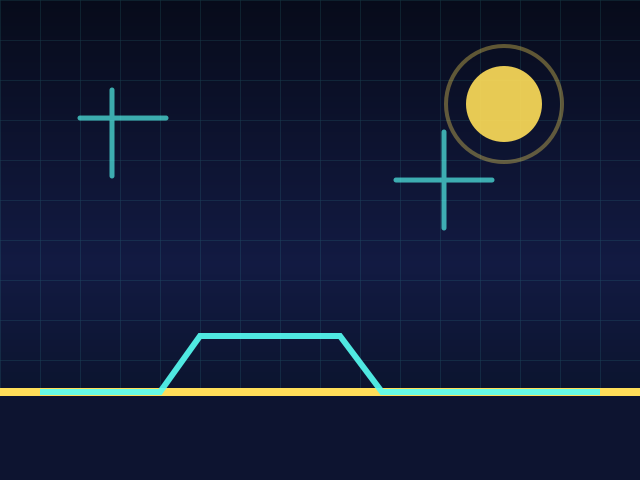
Students may follow these examples or draw their own versions in Scratch. Keep the sprite names from the lesson.
Follow the target shapes shown here so your scripts match the lesson quickly.
Draw a custom cube, spikes, portal, or backdrop in Scratch. Keep the same sprite names so the code still works.

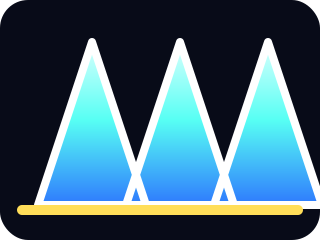
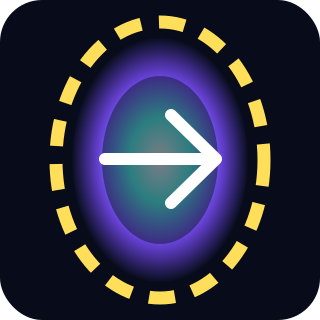
The cube stays near the left side while the level scrolls toward it. Jump timing is the whole game.
Build it
- Pick a built-in Scratch loop or record a simple beat.
- Start the music when the green flag is clicked.
- Play a short sound when the cube jumps.
- Play a different sound when the cube crashes.
- Add a soft color pulse every 0.7 seconds while gameOn is 1.
Backdrop pulse loop
when green flag clicked
clear graphic effects
forever
if <(gameOn) = (1)> then
change [color v] effect by (15)
wait (0.7) seconds
end
end
Understand it
The pulse does not have to match a real song perfectly. It just needs to create a repeated timing signal that makes the level feel designed.
Try this
Try this
Three short experiments. Predict before you run, then test your guess.
Test your stage
- Music starts on green flag.
- Jump has a clear sound or visual cue.
- Crash has different feedback.
- Backdrop pulse stops mattering after gameOn is 0.
If it breaks
- If sounds overlap too much, use start sound for background music and play sound until done for short effects only when needed.
- If the stage gets too colorful, lower the color effect change.
Keep students moving on the default path first. Custom assets are encouraged, but the required names and variables are not optional. If debugging takes more than a few minutes, compare the student's sprite names, variable names, and block order against the stage test list.