Stage 6: Score and Survival Timer
Stage 6: Score and Survival Timer
Keep your Scratch project tab open all week. Open in a new tab so you don’t leave the course.
score, time, and progress readouts
how variables turn survival into feedback
a game that measures how far the player gets
- Create time and levelComplete variables for all sprites.
- Reset score and time on green flag.
- Increase time every second while gameOn is 1.
- Increase score as the cube survives.
- Win after time reaches 45 seconds.
The big idea
A score turns play into a challenge. The player can now say, 'I survived 32 seconds,' then try again and beat it.
- score
- a number that rewards progress
- timer
- a variable that counts time
- win condition
- the rule that says the player finished the level
- readout
- a visible variable display on the stage
Stage 5 should be done. Cloned spikes should scroll across the stage.


Students may follow these examples or draw their own versions in Scratch. Keep the sprite names from the lesson.
Follow the target shapes shown here so your scripts match the lesson quickly.
Draw a custom cube, spikes, portal, or backdrop in Scratch. Keep the same sprite names so the code still works.
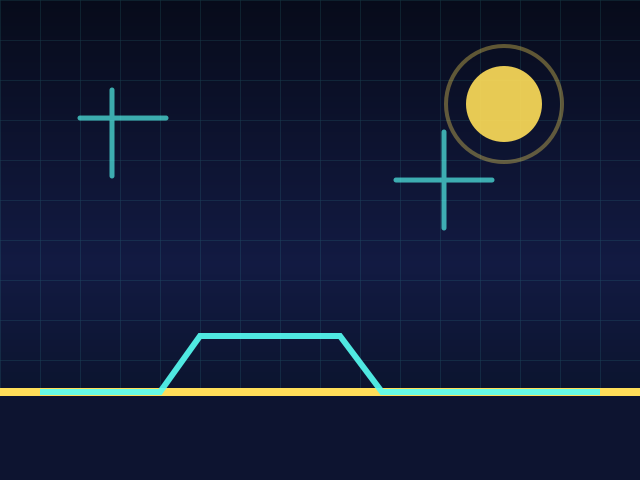
The cube stays near the left side while the level scrolls toward it. Jump timing is the whole game.
Build it
- Create variables time and levelComplete for all sprites.
- Show score and time on the stage as large readouts.
- Add the timer script to the Stage or Cube.
- Set gameOn to 0 and levelComplete to 1 when time reaches 45.
- Play until you crash and then play until you win.
Score and timer loop
when green flag clicked
set [time v] to (0)
set [score v] to (0)
set [levelComplete v] to (0)
forever
if <(gameOn) = (1)> then
wait (1) seconds
change [time v] by (1)
change [score v] by (10)
if <(time) > (44)> then
set [levelComplete v] to (1)
set [gameOn v] to (0)
end
end
end
Understand it
The game can end for two different reasons now: crash or complete. The variable levelComplete tells the finish screen which story to show later.
Try this
Try this
Three short experiments. Predict before you run, then test your guess.
Test your stage
- time starts at 0.
- score starts at 0.
- Both readouts increase while gameOn is 1.
- The game stops when time passes 44.
If it breaks
- If time jumps too fast, make sure there is one wait 1 seconds inside the loop.
- If score keeps growing after a crash, check the gameOn condition.
Keep students moving on the default path first. Custom assets are encouraged, but the required names and variables are not optional. If debugging takes more than a few minutes, compare the student's sprite names, variable names, and block order against the stage test list.