Setup
Setup
Keep your Scratch project tab open all week. Open in a new tab so you don’t leave the course.
a Scratch account and a saved blank Geometry Dash project
where Scratch lives, how to save, and how this original course avoids copied assets
a workspace ready for the cube-runner build
- Open Scratch and click Create.
- Show the editor panels: blocks, code area, stage, and sprite pane.
- Save a blank project named Geometry Dash - Coach Demo.
- Explain that the course is inspired by cube-runner games, but students will make original art.
The big idea
This course builds one Scratch project all week: an original neon cube runner. The cube jumps, spikes scroll toward it, portals change the rules, and the final screen shows how far the player made it.
The images in the lessons are target examples. Students may use the shapes as references or draw their own assets in Scratch. The important rule is consistency: keep sprite and variable names the same so the code still works.
- Scratch
- the free website where we build the game
- project
- the saved game file in your Scratch account
- sprite
- a character or object on the stage
- original asset
- art you make yourself instead of copying from a game
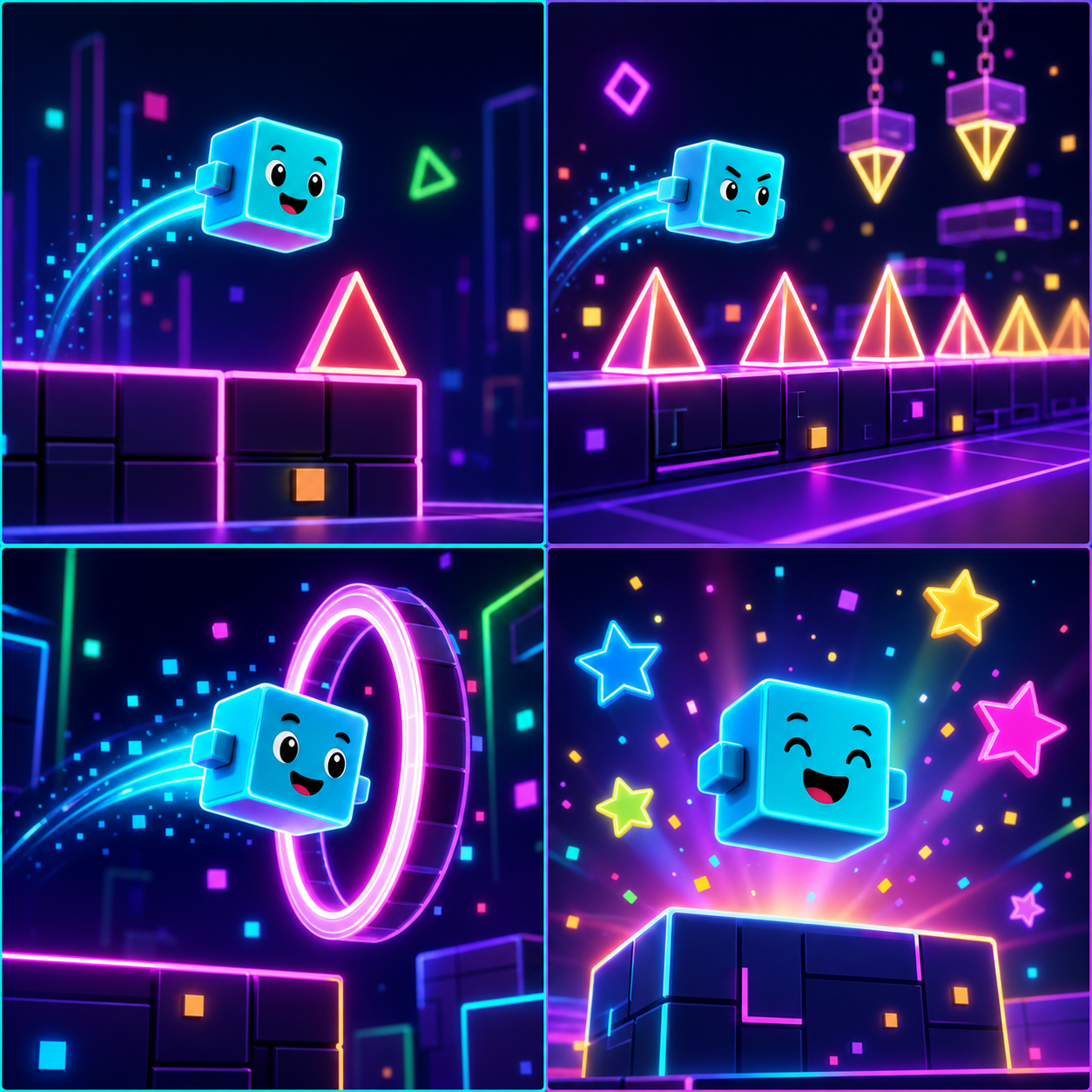
These generated images show the style target. Students can still draw their own cube, spikes, portals, and backdrop inside Scratch.



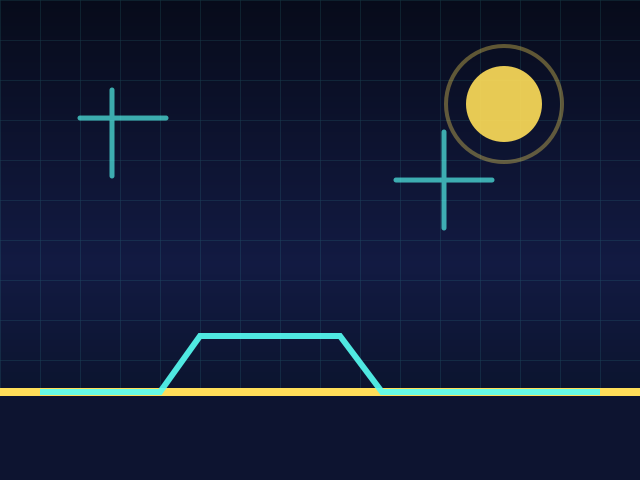
Use these as visual targets. In the build stages, students also learn how to draw their own Scratch versions.
Follow the target shapes shown here so your scripts match the lesson quickly.
Draw a custom cube, spikes, portal, or backdrop in Scratch. Keep the same sprite names so the code still works.

To import: download the asset, open Scratch, choose Upload Sprite, Upload Backdrop, or Upload Costume, then select the file. You can also draw your own instead. Keep the required sprite names from the lesson.
Build it
Step 1 - Open Scratch
Go to Scratch, sign in, and click Create. If your camp gave you an account, use that account.
Step 2 - Save the project
Name the project exactly like this, using the student's real name:
Geometry Dash - First LastStep 3 - Find the editor panels
Point to the block palette, code area, stage, and sprite pane. You will use all four every day.
Step 4 - Make the asset choice
Decide whether to follow the target visuals closely or draw a custom theme. Either choice works.
Test your setup
- You are signed in to Scratch.
- Your project is named Geometry Dash - First Last.
- You clicked File, then Save Now.
- You can point to the stage, sprite pane, block palette, and code area.
- You understand that the final game will use original student-made or course-example assets.
If it breaks
- If the project is missing, sign in and check My Stuff.
- If Scratch will not create an account, ask a coach for the camp account plan.
- If the name is wrong, rename it now. Coaches need predictable project names.
Keep the IP guidance simple: this is a Geometry Dash-inspired course, but students are building original cube-runner art and code in Scratch. Do not have students import official logos, screenshots, or character art.