Unbox & Build Your mBot
We code the mBot in mBlock 5. Keep this tab open all week. Open in a new tab — don’t use the buttons in this page to leave the course.
a fully assembled mBot that lights up and beeps when you press the button
the name of every part you will use this week
a working robot connected to mBlock 5, ready for Stage 1
Before campers open their kits, show the whole room:
- Hold up the finished mBot. Point to the wheels, the board (the brain), the ultrasonic sensor (the two round "eyes"), and the line sensor underneath.
- Open mBlock 5 on the projector. Show that it looks just like Scratch.
- Plug a robot in, click the green flag, and make it beep once. Say: "By the end of today, every robot in this room does this."
- Hand out kits after the demo, not before — otherwise nobody watches.
The big idea
A robot is just a computer with a body. The body is the part you build today: wheels to move, lights to glow, a buzzer to beep, and sensors to notice the world. A sensor is a part that turns something real — a wall, a line, a sound — into a number the robot can use.
Today is not about coding yet. Today is about building the body and waking it up. Once the robot lights up, the rest of the week is teaching it what to do.
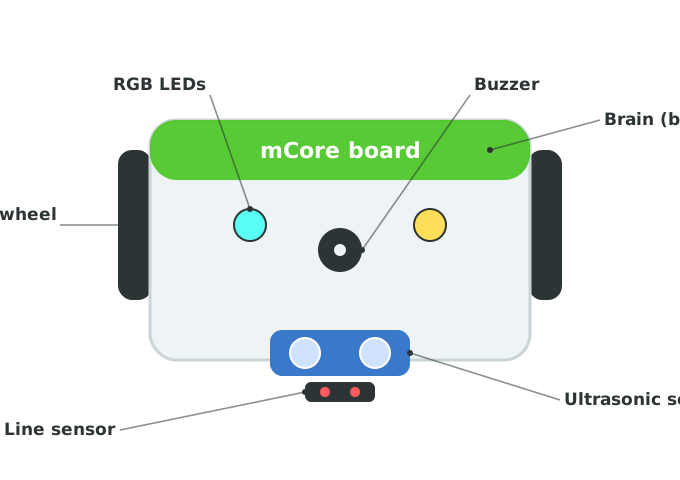
Find each of these parts in your kit before you start building. You will use every one of them this week.
- mBot
- the robot you are building
- board
- the robot's brain, where your code runs
- sensor
- a part that turns something real into a number the robot can use
- mBlock
- the app where you snap blocks together to code the robot
- upload
- sending your blocks from the computer to the robot
Build it
Take your time. A robot built carefully today saves you from loose-wheel problems all week.
- 1Lay out the partsOpen the box and find the chassis (the metal base), two motors, two wheels, the board, the battery holder, the ultrasonic sensor, and the line sensor. Match them to the diagram above.
- 2Attach the motors and wheelsScrew a motor to each side of the chassis, then push a wheel onto each motor. Give each wheel a gentle spin — it should turn freely.
- 3Mount the board and batterySet the board on top of the chassis and screw it down. Plug each motor's wire into the ports marked M1 and M2. Snap in the battery holder.
- 4Add the two sensorsBolt the ultrasonic sensor to the front (the two round eyes face forward). Bolt the line sensor underneath, near the front, facing the floor. Plug each into a numbered port.
Follow the kit's paper guide alongside these four steps. Raise your hand at the end of each step so a coach can check it.
Step 5 — Connect your robot to mBlock 5
Now wake the robot up.
- Slide the battery switch to ON. A light on the board should glow.
- Plug the robot into the computer with the USB cable.
- Click the mBlock 5 button at the top of this page to open the app.
- Click Devices → Add → mBot, then click Connect.
If mBlock cannot find your robot, click the Connect your mBot button at the top of this page — it has the small helper program (mLink) some computers need before the robot will connect.
Step 6 — Your first blocks: light + beep
Let's prove the robot is alive. In mBlock 5, drag these blocks together:
Hello, robot
when green flag clicked
set led [all v] to color [#47c621] :: looks
play tone on note (C5) for (0.5) beats :: sound
Click the green flag. Your robot should glow green and beep once.
If nothing happens, check that the robot is switched on, the cable is plugged in all the way, and mBlock still says Connected at the top.
Pacing Lab
This lab is required before Stage 1. It makes sure every robot in the room is built and connected before anyone starts coding — a loose wheel or a bad cable now will steal time all week.
Part A — The wiggle test (15 minutes)
Pick up your robot and gently wiggle each part:
- Wheels — spin freely, but the motors do not slide around.
- Board — does not lift off the chassis.
- Both sensors — firmly bolted, facing the right way (eyes forward, line sensor down).
- Battery — snug, switch reachable.
Fix anything loose now. Raise your hand when every part passes.
Part B — Connect-and-recover drill (10 minutes)
- Unplug the USB cable. Watch mBlock say Disconnected.
- Plug it back in and click Connect until it says Connected again.
- Run the "Hello, robot" blocks one more time.
You are done when you can disconnect and reconnect without help.
Test your setup
- Your mBot is fully assembled and nothing wiggles loose.
- The battery switch is on and a light glows on the board.
- mBlock 5 says Connected at the top.
- Your "Hello, robot" blocks make the robot glow and beep.
- Build check. Set the robot on the floor and look at it from the front. Do the ultrasonic "eyes" point straight ahead, not up or down?
If it breaks
- mBlock won't find the robot. Make sure the robot is switched on and the cable is fully seated. Then click Connect your mBot at the top of this page and install the helper program (mLink). Reload mBlock and try Connect again.
- The robot connects, but nothing happens when I click the flag. Check that mBlock still says Connected — the cable can wiggle loose. Re-seat it and try again.
- A wheel rubs or the robot drives crooked. A motor is probably not screwed down straight. Loosen it, line it up with the chassis edge, and tighten again.
- The board has no light at all. The battery may be in backward or low. Check the battery direction, then ask a coach about charging or fresh batteries.
Day 1 is the longest day because of the build — budget a full hour before any coding. Pre-sort the screws and small parts into cups per kit before camp; loose hardware on the floor is the single biggest time sink at this age.
Walk the room during the wiggle test. The two most common build mistakes are motor wires plugged into the wrong ports and the line sensor mounted facing up instead of down. Catch those now — they cause confusing "my robot is broken" moments in Stages 1 and 6.
Keep a couple of pre-built mBots aside. If one camper's kit has a damaged part, swap in a spare so they aren't stuck watching while the room codes.